As you might have noticed, I'm having trouble getting a Flash Video movie to play here in the blog. It works fine on on the Internet Archive, which even has code you're supposed to be able to copy and paste into your own web page. When I tried that, nothing showed up. The experimentation continues.
For people who can't see the Windows Media version posted earlier, that leaves, ugh, YouTube. This should work. If not, here is the link.
I also tried Google video. Google owns YouTube so I suspect that the video quality will be similar. Let's see, shall we?
Showing posts with label Green Screen. Show all posts
Showing posts with label Green Screen. Show all posts
Saturday, September 08, 2007


Friday, September 07, 2007
Different Video Format
Someone mentioned that he could not watch the Sunken Gardens video I posted in Windows Media Format. Flash video (FLV) seems to be the most universally viewable format. Unfortunately, my Adobe Premiere Pro refuses to create FLV files. I found a program that will convert AVI files into FLV files so I've tried that.
Thursday, August 16, 2007
Sunken Gardens 2
As mentioned, I toted my HD camera with me to Sunken Gardens in St. Pete Sunday. I remembered to shoot shots specifically for me to use with the green screen. Unfortunately, I did not remember my bug spray. Don't worry. No shots of my mosquito-ravaged legs appear.
I did script this one, which is why I speak so much faster in this one than I did in the Big Cat Rescue story. Again, I wasn't too concerned about the performance. I mostly wanted to work with editing HDV and using the green screen. One cool thing about the green screen is that I can shoot myself centered in front of it, then move myself to different positions in the frame in editing.
It takes the video some time to load so don't panic when you press the play button and nothing happens. It will. That's when you panic.
I did script this one, which is why I speak so much faster in this one than I did in the Big Cat Rescue story. Again, I wasn't too concerned about the performance. I mostly wanted to work with editing HDV and using the green screen. One cool thing about the green screen is that I can shoot myself centered in front of it, then move myself to different positions in the frame in editing.
It takes the video some time to load so don't panic when you press the play button and nothing happens. It will. That's when you panic.

Friday, August 10, 2007
More HD Green Screen Test
Windows Media Version of the HD Green Screen Test below. Again this was ad-libbed and its purpose was to try out my HD camera in front of the green screen and to practice editing using the chroma key feature.
The video above may take a moment to
load depending on your connection speed.
The video above may take a moment to
load depending on your connection speed.
Thursday, August 09, 2007
HD Green Screen Test
It works. Not like it's supposed to, probably, but I figured something out. I usually do. I did some poking around Internet forums and some playing around with my video editing program, Adobe Premiere Pro, and eventually found a way to generate the QuickTime movie below.
Don't judge the on-camera performance too critically. Speaking extemporaneously is not one of my gifts. There was no script, though I did have my laptop with the thumbnails of the photos nearby for reference. That's what you see me looking down at periodically. I did edit parts out where I talked too long about things I didn't have pictures of. That cut the running time from almost 15 minutes to just over nine.
I was also able to burn a DVD and to create a Windows Media File, which is a smaller file size but looks better than the QuickTime movie. I'll post that here when I get chance.
For more on the controversial history of Big Cat Rescue and its founder, check out this article in the St. Petersburg Times.
Don't judge the on-camera performance too critically. Speaking extemporaneously is not one of my gifts. There was no script, though I did have my laptop with the thumbnails of the photos nearby for reference. That's what you see me looking down at periodically. I did edit parts out where I talked too long about things I didn't have pictures of. That cut the running time from almost 15 minutes to just over nine.
I was also able to burn a DVD and to create a Windows Media File, which is a smaller file size but looks better than the QuickTime movie. I'll post that here when I get chance.
For more on the controversial history of Big Cat Rescue and its founder, check out this article in the St. Petersburg Times.
Trial and Errors
I finished the HD green screen test last night. Unfortunately, I haven't figured out how to show it to you yet. Let's see if I can explain this.
My HDV camera shoots frames that measure 1280 by 720 pixels. That's what I see in my Adobe Premiere Pro video editing program. If I use only video shot with that camera, it's fine. You can see that in the first HD test I posted.
But this time, I used an animated background and photographs of different dimensions. When I import them into Premiere Pro and add them to the video timeline, I can get them properly framed in the monitor window. Within the program the video plays in its proper 16:9 aspect ratio and looks like it should, as the still frame capture below shows.
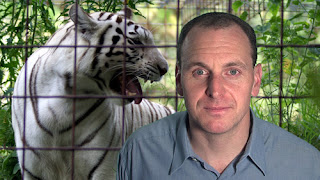
The problem comes when I try to export the finished movie. When I export it as an AVI file, look what happens:
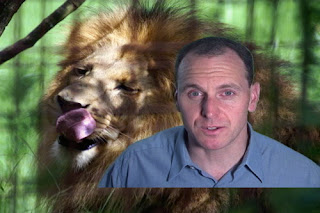
Instead of the 16:9 ratio, it creates a video file that's 4:3. Worse, it shows parts of the background photo that are supposed to be cropped just like in the first still frame capture. Back on the original HD test, I couldn't tell there was a problem because there was no background (or foreground, in the instances where I cover my face with a photo or video) so when creating the AVI file the extra space above and below the frame showed up black -- the so called "letterboxing" effect.
Premiere Pro has encoding software for other formats so I tried some. Flash video (FLV) would be great, that's the most easily viewed by Internet browsers, so it would work better here than the QuickTime movies I usually use. So I tried that.
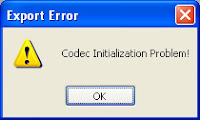
Oops. That's not good. I noticed that in the place where I want to save the Flash file I'm creating, it makes the file but adds a ".mov" end the end of the file name. Something like this: "HDGreenScreen1.flv.mov" which is obviously not right.
What about QuickTime? That seemed to work. I could adjust the dimensions so that it would create a 16:9 file. Great! But when I played the QuickTime movie, the audio and video came unsynched about a minute or so into it. By two to three seconds. It did not seem to get progressively worse as the file played. The audio began lagging suddenly and stayed the same distance behind for the rest of the movie. The video turned white when the last video frame ended as the audio kept going.
I made a Windows Media file but that had the same problems as the AVI. I exported the movie as an MPEG2 file but the file it created had a .m2t suffix that my computer didn't recognize. I tried to burn a DVD from the timeline but it would create only a 720x480 size, not only the wrong aspect ratio but much smaller than the 1280x720. And it didn't shrink the video to fit in the frame, it simply cropped it.
This is a long-winded way of saying that I've got some research to do before I can show you how well (I think) my green screen test worked. I'd look in my Adobe user guide but it's not really helpful. They want you to buy the tutorial. It's not enough to pay for the program. Adobe wants you to pay again if you want to learn how to use it.
My HDV camera shoots frames that measure 1280 by 720 pixels. That's what I see in my Adobe Premiere Pro video editing program. If I use only video shot with that camera, it's fine. You can see that in the first HD test I posted.
But this time, I used an animated background and photographs of different dimensions. When I import them into Premiere Pro and add them to the video timeline, I can get them properly framed in the monitor window. Within the program the video plays in its proper 16:9 aspect ratio and looks like it should, as the still frame capture below shows.

The problem comes when I try to export the finished movie. When I export it as an AVI file, look what happens:

Instead of the 16:9 ratio, it creates a video file that's 4:3. Worse, it shows parts of the background photo that are supposed to be cropped just like in the first still frame capture. Back on the original HD test, I couldn't tell there was a problem because there was no background (or foreground, in the instances where I cover my face with a photo or video) so when creating the AVI file the extra space above and below the frame showed up black -- the so called "letterboxing" effect.
Premiere Pro has encoding software for other formats so I tried some. Flash video (FLV) would be great, that's the most easily viewed by Internet browsers, so it would work better here than the QuickTime movies I usually use. So I tried that.

Oops. That's not good. I noticed that in the place where I want to save the Flash file I'm creating, it makes the file but adds a ".mov" end the end of the file name. Something like this: "HDGreenScreen1.flv.mov" which is obviously not right.
What about QuickTime? That seemed to work. I could adjust the dimensions so that it would create a 16:9 file. Great! But when I played the QuickTime movie, the audio and video came unsynched about a minute or so into it. By two to three seconds. It did not seem to get progressively worse as the file played. The audio began lagging suddenly and stayed the same distance behind for the rest of the movie. The video turned white when the last video frame ended as the audio kept going.
I made a Windows Media file but that had the same problems as the AVI. I exported the movie as an MPEG2 file but the file it created had a .m2t suffix that my computer didn't recognize. I tried to burn a DVD from the timeline but it would create only a 720x480 size, not only the wrong aspect ratio but much smaller than the 1280x720. And it didn't shrink the video to fit in the frame, it simply cropped it.
This is a long-winded way of saying that I've got some research to do before I can show you how well (I think) my green screen test worked. I'd look in my Adobe user guide but it's not really helpful. They want you to buy the tutorial. It's not enough to pay for the program. Adobe wants you to pay again if you want to learn how to use it.
Tuesday, August 07, 2007
Rendering
I shot my HD green screen test last night and hoped to have a clip for your visual consumption by now but rendering the green screen effects plus photographs takes FOREVER!
Here is a still frame:
 Click on the image to see a larger version.
Total time for the project is about 11 minutes right now and I've completed about 4:30 of that. There could be more cuts as I go. But if I have enough pictures to cover my rambling recollection of my trip to Big Cat Rescue, I'll let it go. If I can't be self-indulgent on my own blog, where can I?
Here is a still frame:
 Click on the image to see a larger version.
Total time for the project is about 11 minutes right now and I've completed about 4:30 of that. There could be more cuts as I go. But if I have enough pictures to cover my rambling recollection of my trip to Big Cat Rescue, I'll let it go. If I can't be self-indulgent on my own blog, where can I?
Friday, June 15, 2007
Traffic Practice
My very occasional gig doing the morning traffic reports at WTSP-TV happens again Monday. This will be only my fourth day filling in this year. I did three days in April.
Because I so rarely do this, I usually go in the day before to refresh myself on the format and procedure. This morning I went in to practice in front of the green screen wall used for some of the traffic reports. (If you click on the "Green Screen" label below and go to the oldest entry, I explain what a green screen is and how one works.) Last time I filled in, I consistently found myself out of position relative to the things on screen that I wanted to point out.
For traffic and weather, which is ad-libbed, they have it set up so that when you look in the camera, you can see yourself. This is how you know what shows behind you without having to look away from the camera. At first, it seems like looking into a mirror. Except it's the opposite of that. See the picture below.

If that were a mirror image, the "10" behind me would show backwards. Similarly, in a mirror image, if I turn to my right, my reflection will turn to its left. Here, however, when I turn to my right, my reflection turns to its right too.
This is surprisingly disorienting. When you see yourself on camera and want to gesture at something on a part of the screen, your brain tells you to turn toward it based on its training from all time you spend looking at yourself in the mirror. That, of course, is the exact opposite of the direction you should turn.
I had gotten accustomed enough that I rarely had to start a turn, see my mistake, then wheel around the other way -- looking even more like an idiot than usual. First of all, I learned not to make sudden, quick turns. If I start slowly I can catch myself before it's too obvious that I'm going the wrong way.
But more practice would do me good. I didn't have to wake up too early, since the studio wouldn't be available until after the local morning show ended at 7 a.m. and the CBS Early Show began. I go in and see the regular traffic anchor, Meredyth Censullo, who seems supernaturally suited to her job. She can rattle off details about crashes, lane closures and slowdowns with nary a note in her hand. Me? I have to write that stuff down or I'm dead.
I told her that I felt reasonably comfortable with the computer system but that I needed practice on the chroma key, explaining my occasional positioning problems. She showed me how she almost always stands on the same side of the screen and leaves some extra room on that side of the graphic so that she's not blocking anything important.
Problem solved before I even step in front of the camera. Why couldn't I have thought of that? It would have saved me about 40 miles of driving, plus tolls.
Now I'm free to spend the weekend in abject terror that I will not set my alarm properly (like I did this morning!) and sleep through the job.
Because I so rarely do this, I usually go in the day before to refresh myself on the format and procedure. This morning I went in to practice in front of the green screen wall used for some of the traffic reports. (If you click on the "Green Screen" label below and go to the oldest entry, I explain what a green screen is and how one works.) Last time I filled in, I consistently found myself out of position relative to the things on screen that I wanted to point out.
For traffic and weather, which is ad-libbed, they have it set up so that when you look in the camera, you can see yourself. This is how you know what shows behind you without having to look away from the camera. At first, it seems like looking into a mirror. Except it's the opposite of that. See the picture below.

If that were a mirror image, the "10" behind me would show backwards. Similarly, in a mirror image, if I turn to my right, my reflection will turn to its left. Here, however, when I turn to my right, my reflection turns to its right too.
This is surprisingly disorienting. When you see yourself on camera and want to gesture at something on a part of the screen, your brain tells you to turn toward it based on its training from all time you spend looking at yourself in the mirror. That, of course, is the exact opposite of the direction you should turn.
I had gotten accustomed enough that I rarely had to start a turn, see my mistake, then wheel around the other way -- looking even more like an idiot than usual. First of all, I learned not to make sudden, quick turns. If I start slowly I can catch myself before it's too obvious that I'm going the wrong way.
But more practice would do me good. I didn't have to wake up too early, since the studio wouldn't be available until after the local morning show ended at 7 a.m. and the CBS Early Show began. I go in and see the regular traffic anchor, Meredyth Censullo, who seems supernaturally suited to her job. She can rattle off details about crashes, lane closures and slowdowns with nary a note in her hand. Me? I have to write that stuff down or I'm dead.
I told her that I felt reasonably comfortable with the computer system but that I needed practice on the chroma key, explaining my occasional positioning problems. She showed me how she almost always stands on the same side of the screen and leaves some extra room on that side of the graphic so that she's not blocking anything important.
Problem solved before I even step in front of the camera. Why couldn't I have thought of that? It would have saved me about 40 miles of driving, plus tolls.
Now I'm free to spend the weekend in abject terror that I will not set my alarm properly (like I did this morning!) and sleep through the job.
Thursday, May 31, 2007
Green Screen Test 2
More fun in front of the green screen. This one includes some more explanation of how it works.
Saturday, April 21, 2007
Green Screen Test
I added something recently to my growing collection of video equipment. It's called a green screen or a chroma key screen. It's used to create virtual backgrounds. Below is the first test of it that will explain more, if you can suffer through my moribund performance. Remember, it's only a test.
Subscribe to:
Posts (Atom)